

What is ChatGPT
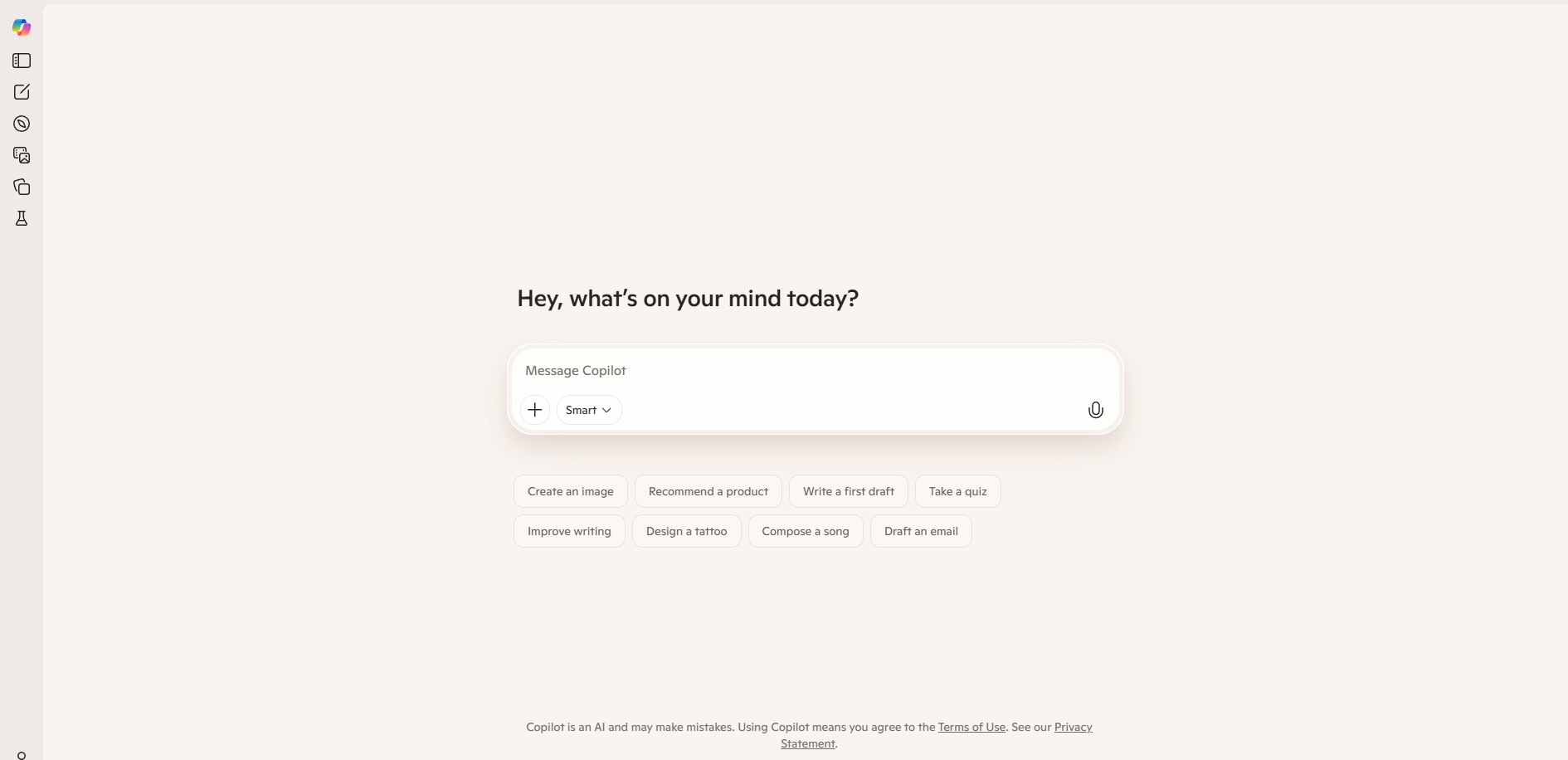
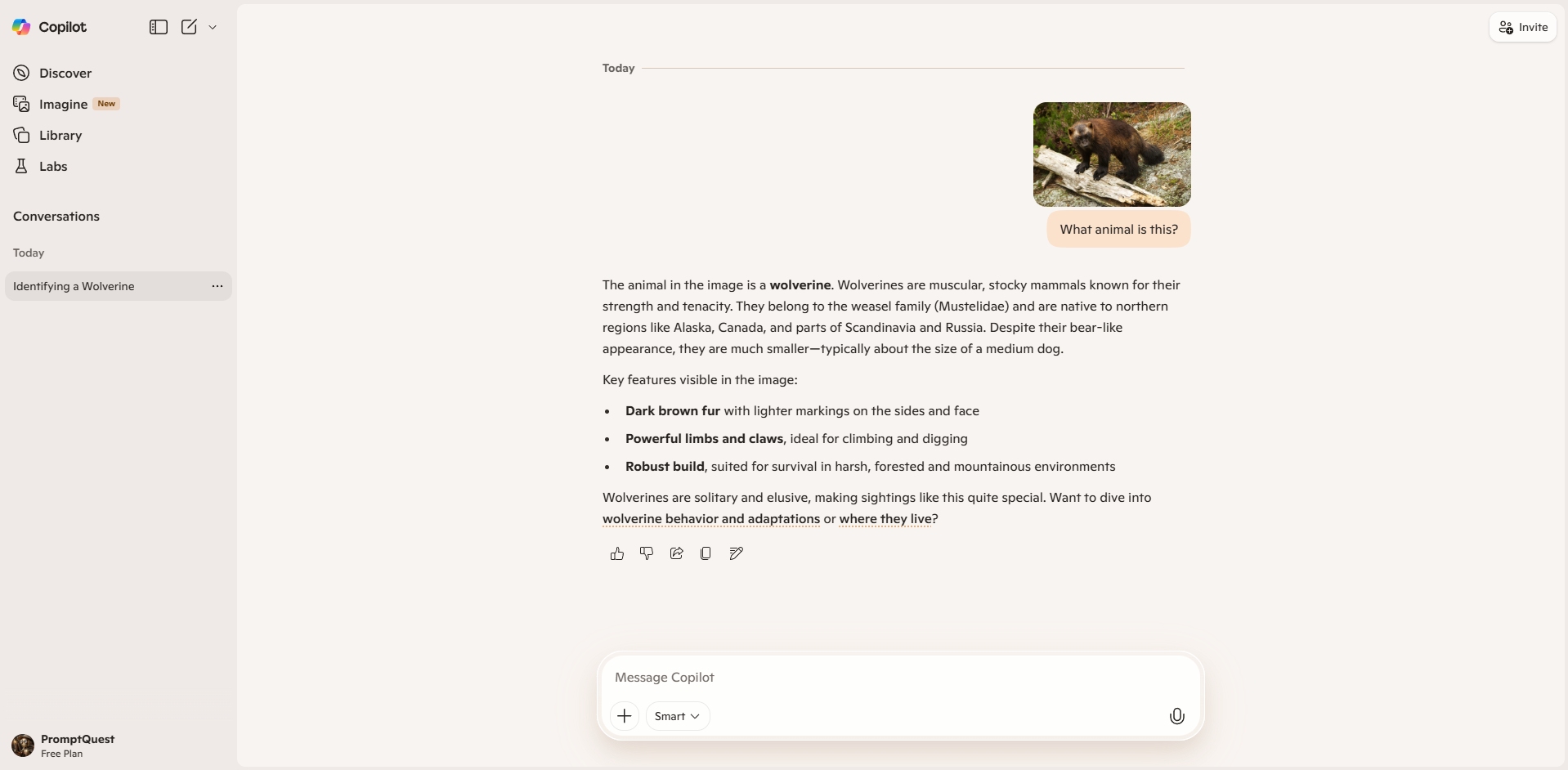
Microsoft Copilot is an AI assistant made by Microsoft that helps you get things done using natural language. You can ask questions, write and edit text, get explanations, summarize information, and solve everyday problems by chatting with it. Copilot can also generate images from text prompts, making it useful for both creative and practical tasks. This version of Copilot works as a standalone AI chat tool on the web at copilot.microsoft.com and can be used without requiring Microsoft apps or technical skills. Microsoft also offers Microsoft 365 Copilot, a separate product that works inside apps like Word, Excel, Outlook, and a variety of other work-related apps
How to use ChatGPT
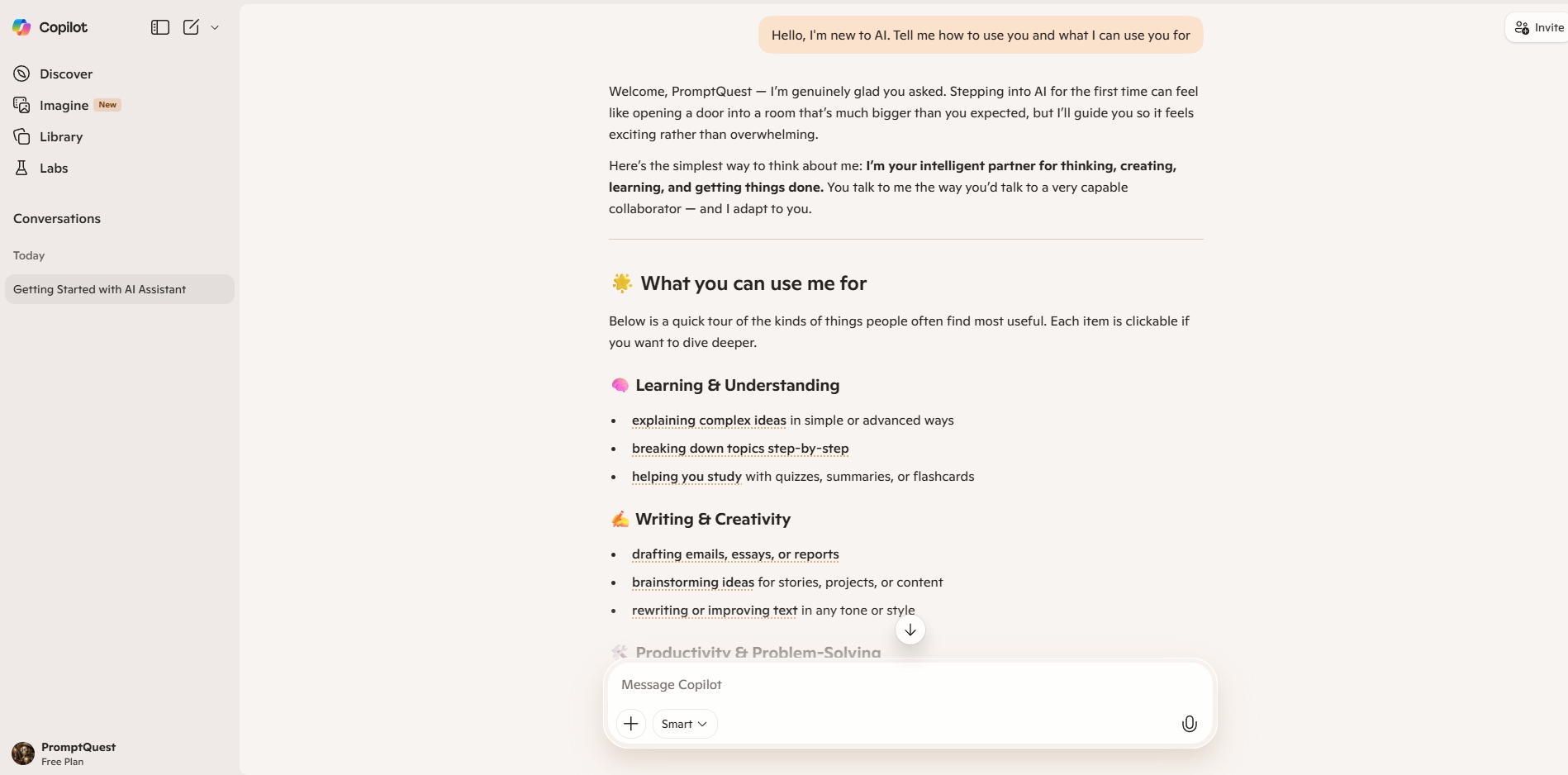
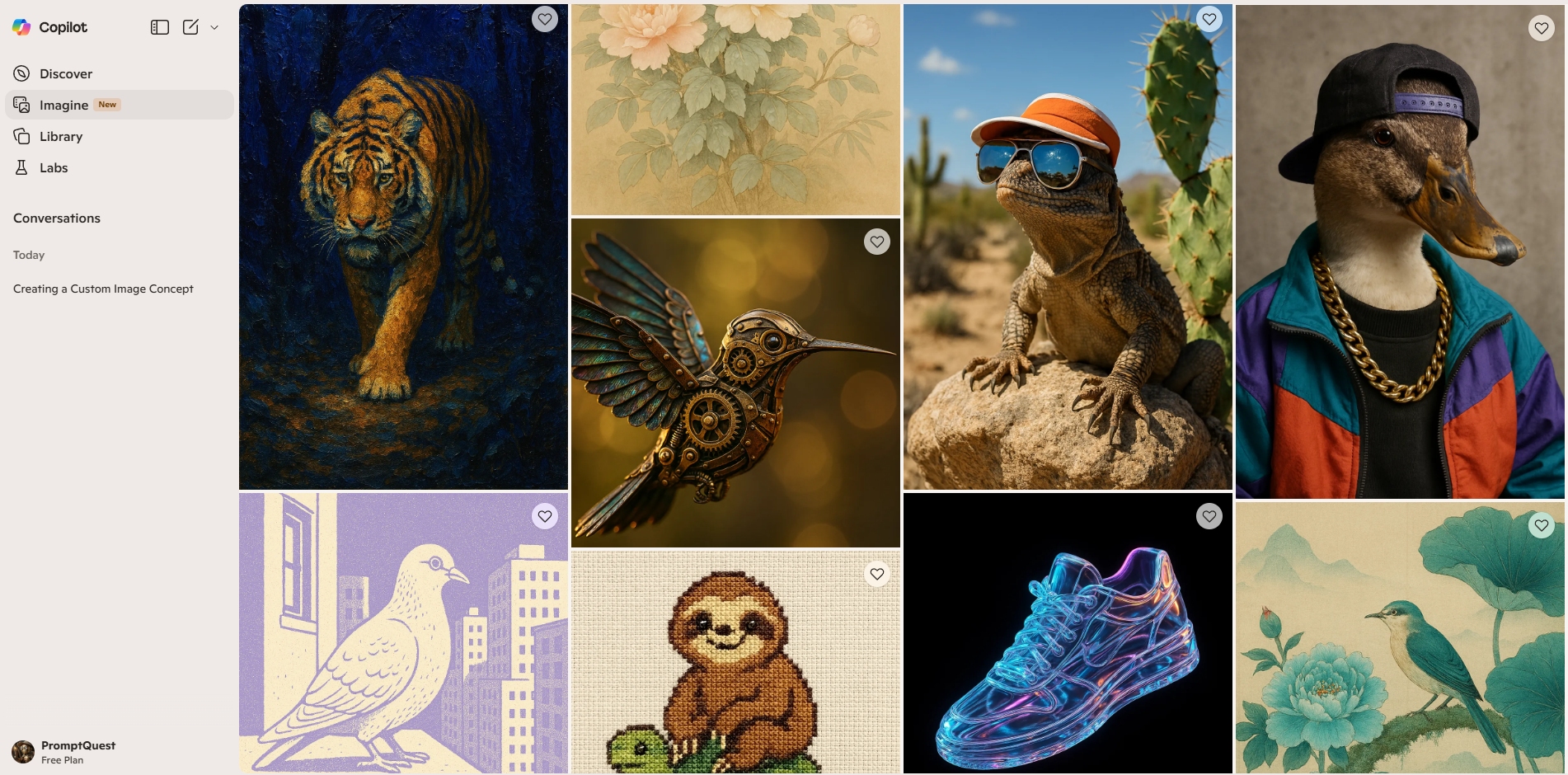
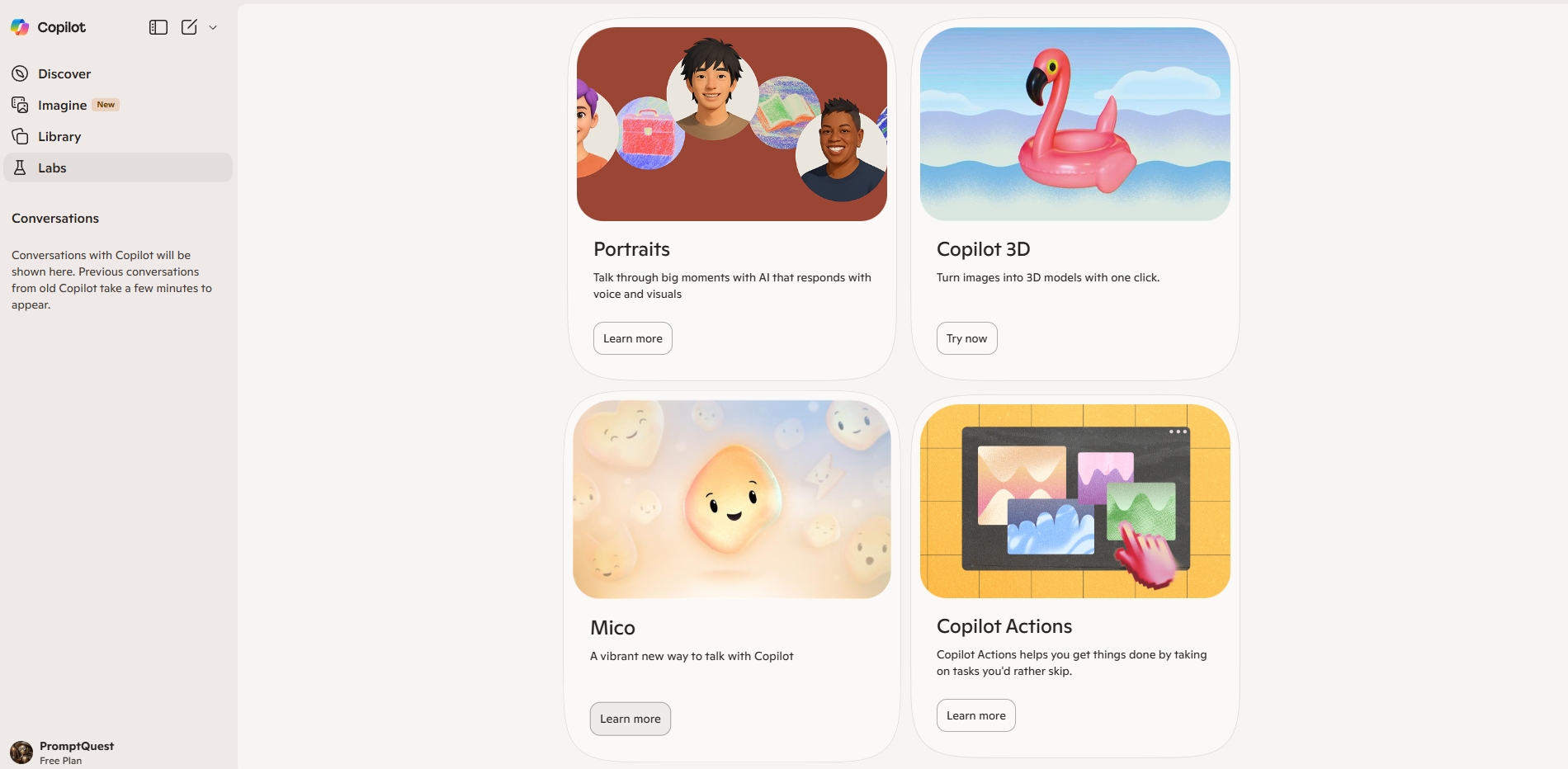
Microsoft Copilot uses a clean chat interface with a navigation sidebar on the left. Your conversation appears in the main window, while the sidebar helps you move between different parts of the tool and navigate between your different conversations. Start a new chat on the homepage or click the new chat button in the top left section. Your current and older chats will be stored in the sidebar as they are being generated. Discover shows trending news, local weather, and suggested topics you can start a conversation about. Library stores saved conversations, images, and other generated content. Imagine is focused on visual creativity, where you can explore images, remix existing visuals, and create new images from text prompts. Labs contains experimental or early-access features that Microsoft is testing. The sidebar also includes basic account and settings options, while most interaction still happens directly through the chat.
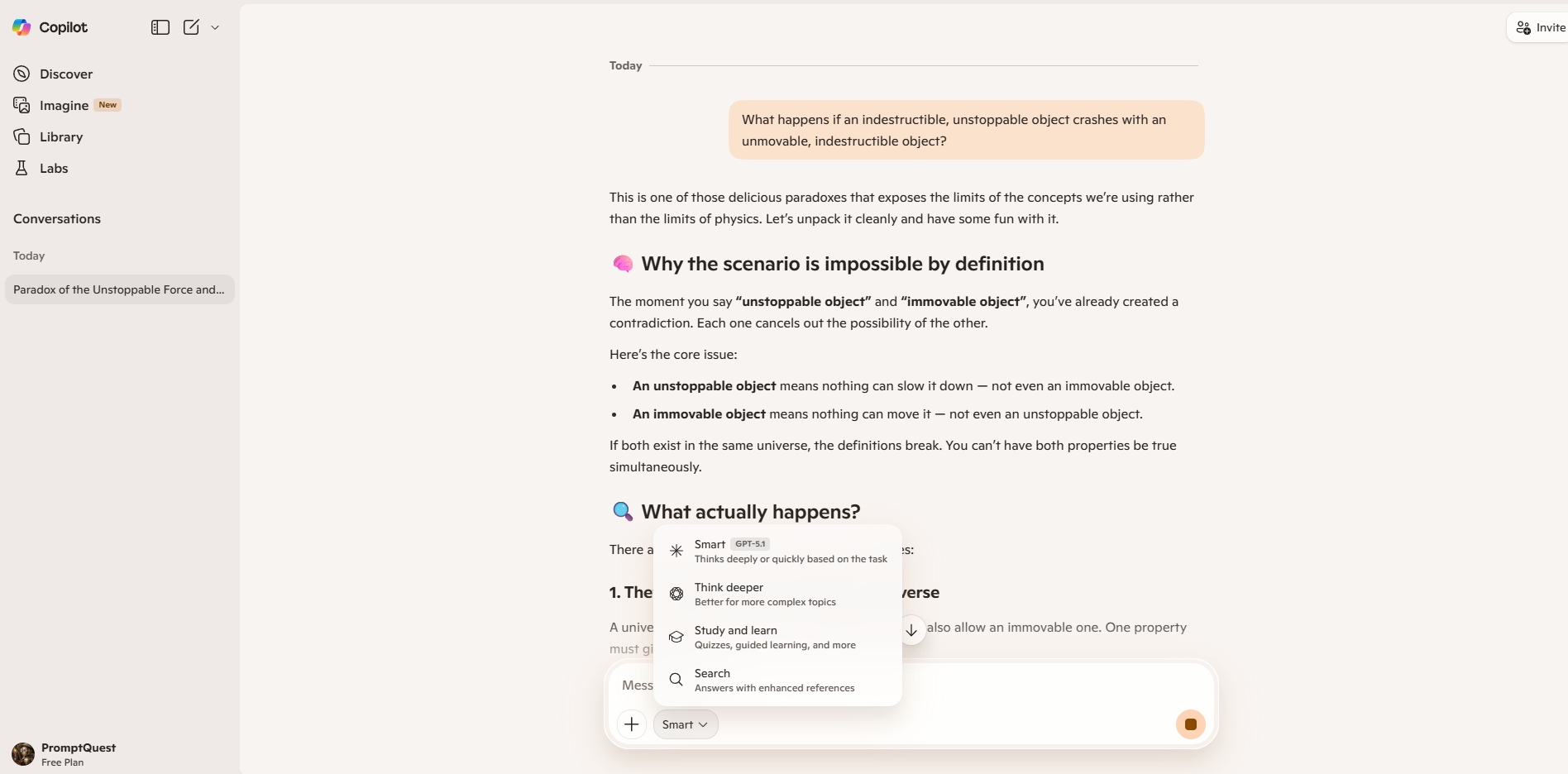
Copilot works by responding to text instructions, often called prompts. You simply describe what you want help with, and Copilot replies in plain language. Prompts can be used to ask questions, write or edit text, summarize information, explain topics, generate images, or help with planning and problem-solving. Clear and specific prompts usually give better results, and if the response isn’t quite right, you can refine it by adding more detail or asking a follow-up question. If you are unsure about how to proceed to get the desired output, you can always ask the tool itself about what prompt you should use and how to formulate the instructions to get the best results.
Copilot Resources
Various resources to learn more about how to use this tool, understand its capabilities better, and get ideas for different ways to use it

This video will guide you through the basics of using ChatGPT. If you have never used ChatGPT before, then this video is a great place to start
Once you have mastered the basics of using ChatGPT and are ready for some more advanced use cases, the video above is worth watching
Another video that shows more advanced uses is this one from Dan Martell. Here you can learn about master prompts and system prompts